Roles and Permissions
Overview
Roles and Permissions in Seekora provides comprehensive access control and permission management for your organization. This system allows administrators to define roles, assign permissions at both organization and store levels, and manage user access across different modules and functionalities.
The role-based access control (RBAC) system ensures that users have appropriate permissions based on their responsibilities, maintaining security while enabling efficient collaboration across teams.
Accessing Roles and Permissions
Navigation Path
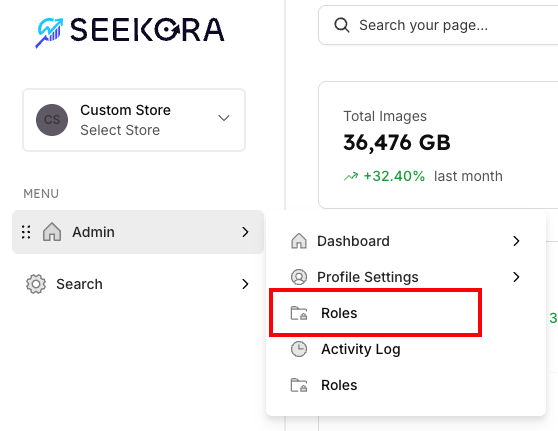
To access Roles and Permissions:
- From Dashboard: Navigate to the main dashboard
- Admin Menu: Click on the "Admin" section in the sidebar
- Roles: Select "Roles" from the admin menu options
- Edit Role: Click "Edit Role" button for any user to configure permissions
Role Types and Structure
Available Role Categories
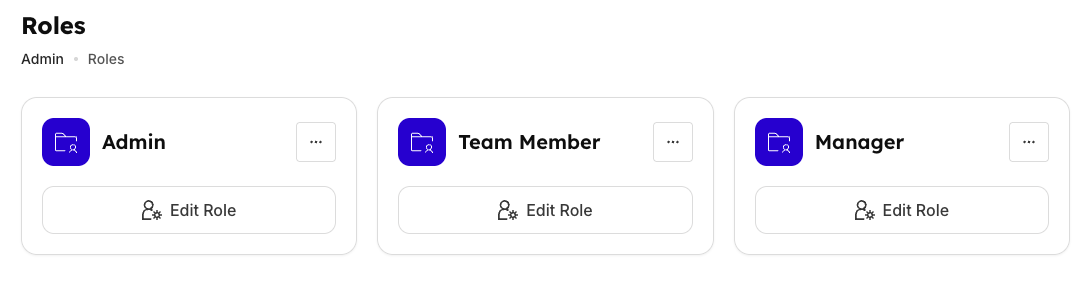
The system includes three primary role types:
| Role Type | Description | Key Permissions | Access Level |
|---|---|---|---|
| Admin | Full system access with complete administrative control | All permissions, user management, system configuration | Complete |
| Team Member | Standard user with access to core functionalities | View, basic operations, assigned modules | Limited |
| Manager | Supervisory role with team and project management capabilities | Team management, approvals, reports, moderate admin | Extended |
Edit Role Modal
When you click on "Edit Role", a comprehensive modal opens that allows you to configure permissions at two distinct levels:
Two Permission Levels
1. Organization Level
- Scope: Company-wide permissions that apply across all stores and resources
- Control: Global access settings for the entire organization
- Features: Profile settings, roles management, billing, and system-wide configurations
- Impact: Changes affect user access across the entire organizational structure
2. Store Level
- Scope: Individual store-specific permissions and access control
- Control: Granular permissions for each store location separately
- Features: Store-specific modules like Dashboard, Configure, Enhance, and Observe
- Impact: Changes only affect access to the selected store's resources and operations
Organization Level Permissions
Permission Configuration Interface
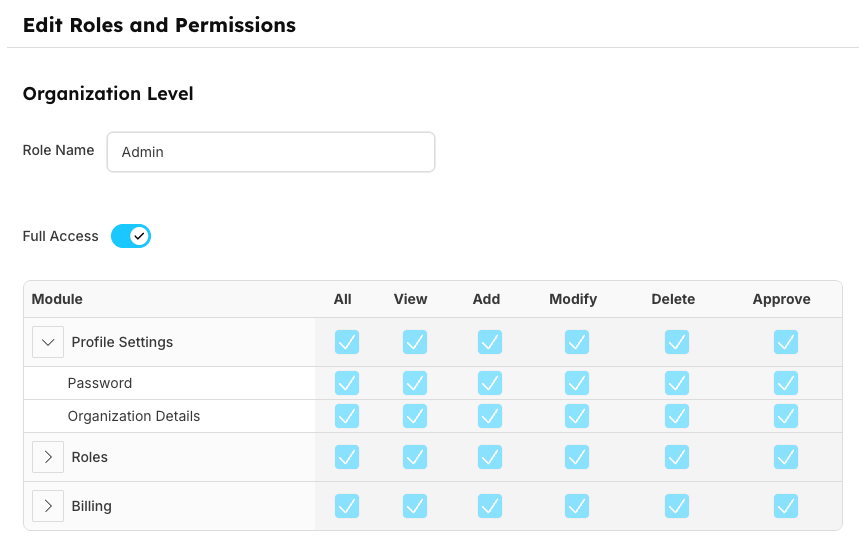
Organization level permissions control access across the entire company structure. These permissions apply to all organizational resources and data.
Permission Control Options
All Permission Toggle
When you click on the "All" checkbox for any module:
- Grants complete access - Automatically enables View, Add, Modify, Delete, and Approve permissions
- Quick setup - One click to give full module access
Custom Permission Selection
You can also customize permissions individually by selecting specific options:
- View: Read-only access to view data and information
- Add: Permission to create new records and entries
- Modify: Ability to edit and update existing data
- Delete: Permission to remove records and data
- Approve: Authority to approve or reject operations and requests
Available Modules
- Profile Settings: User profile and account management
- Roles: Role creation and permission management
- Billing: Financial and billing information access
Flexible Permission Management
You have complete flexibility to:
- Grant full access using the "All" checkbox for maximum permissions
- Mix and match individual permissions based on role requirements
- Fine-tune access by selecting only specific operations (View + Add, or View + Modify, etc.)
- Easily modify permissions by checking/unchecking individual options
Store Level Permissions
Store-Specific Access Control
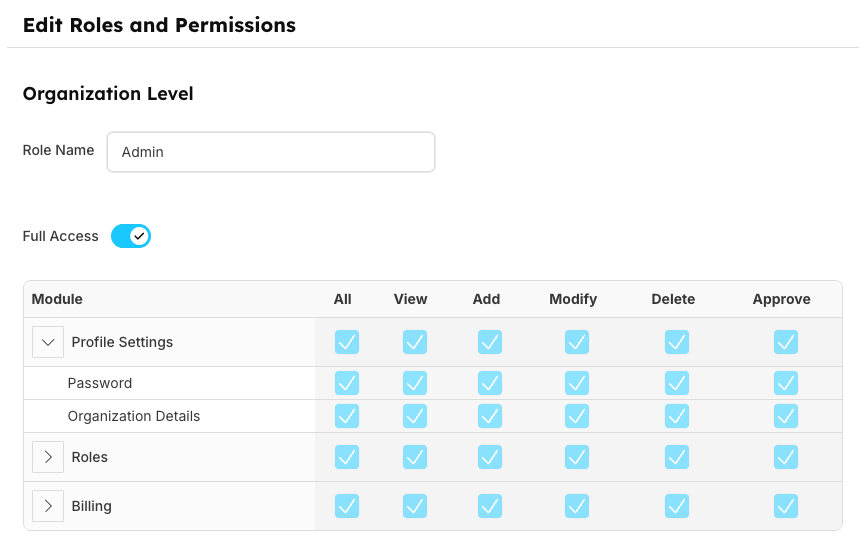
Store level permissions provide granular control over individual store operations, allowing different access levels for different store locations or departments.
Store Permission Structure
Store permissions work similarly to organization-level settings - you can use the "All" toggle for complete module access or select specific permissions (View, Add, Modify, Delete, Approve) for customized control over each store's resources.
Integration with User Management
Roles and Permissions work seamlessly with User Management:
- Role Assignment: Users are assigned roles through the User Management interface
- Permission Application: Role definitions determine user access across the system
- Cross-Reference: Easy navigation between role definitions and user assignments
- Unified Control: Centralized management of both users and their permissions
Frequently Asked Questions
How do I modify permissions for a specific role?
Access User Roles from the Admin menu, click "Edit Role" for any user with the role you want to modify, and adjust the organization or store-level permissions as needed. Changes take effect immediately for all users with that role.
Can permissions be different for different stores?
Yes, the system supports store-level permissions that can override organization-level settings, allowing different access levels for different store locations. This provides granular control over user access across multiple stores.
What happens if I change role permissions?
All permission changes are logged in the audit trail and immediately apply to all users with that role. You can review the Activity Logs to track changes and maintain accountability for permission modifications.
How do I create custom permission combinations?
Use the "Edit Role" feature to select specific permissions (View, Add, Modify, Delete, Approve) for each module rather than using the "All" toggle for complete access. This allows you to create tailored permission sets based on specific job requirements.
Are role changes applied immediately?
Yes, all role and permission changes take effect immediately and apply to all users currently assigned to that role. There is no delay or need to restart the system for changes to be active.
How often should I review user permissions?
It's recommended to review user permissions quarterly or whenever there are significant organizational changes, role changes, or security requirements updates. Regular reviews help maintain security and ensure appropriate access levels.