Rules Management
Overview
The Rules is designed to help administrators customize and improve the search experience by defining specific conditions and consequences for search queries. Rules allow you to control search behavior by specifying what actions should happen when certain conditions match. This enables you to create, edit, and remove search rules easily, ensuring better user experience and more relevant search results.
Why Use Rules?
Rules give you powerful control over how your search engine reacts to different search queries or contexts. You can:
- Customize search results - Enhance what users see in the browse interface
- Pin important items - Promote specific products based on search context
- Hide irrelevant items - Filter out unwanted content from results
- Control rules based on time - Schedule seasonal campaigns and promotions
- Remove unnecessary words - Configure which words to ignore during search
Real-World Example:
If you have a seasonal offer on winter jackets, you can create a rule to pin promotional items whenever users search for "winter" or "jacket".
Key Sections of the Page
The rules interface provides comprehensive management tools
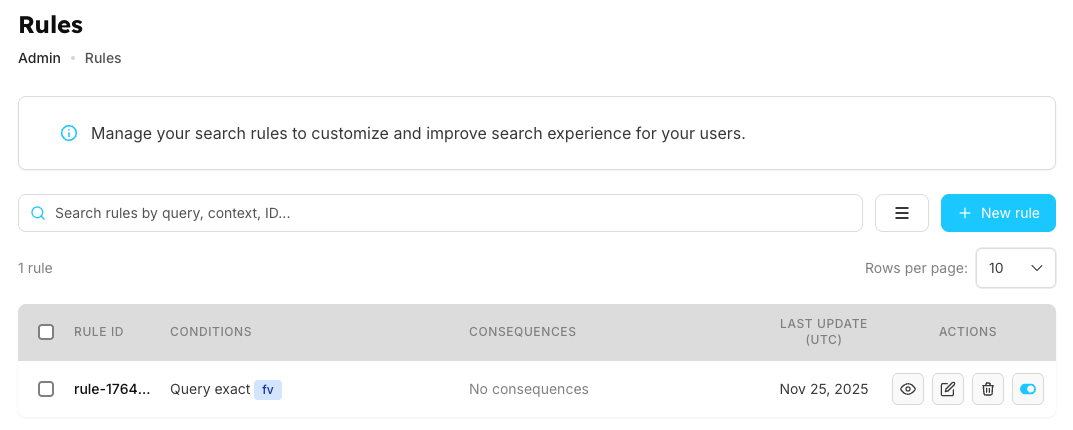
| Section | Description | Features & Functions |
|---|---|---|
| 1. Search Bar | Located at the top of the page for quick rule lookup | Search rules based on:
|
| 2. Toggle Columns (☰ Menu) | Allows customization of visible table columns | Show/hide columns:
|
| 3. Rules Table | Main display area showing all search rules with detailed information | Table Columns:
|
| 4. Rows Per Page | Pagination control for table display | Options:
|
Conditions Section
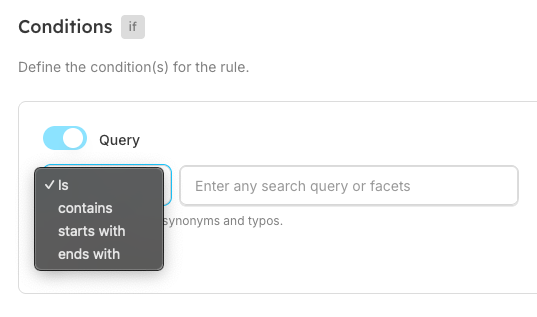
Query Condition
- Toggle ON
- Choose match type: Contains / Is / Starts with / Ends with
- Enter search term
Query conditions work alongside query suggestions and banned expressions to control search behavior.
Context Condition
Context conditions integrate with your search configuration to provide targeted rule application.
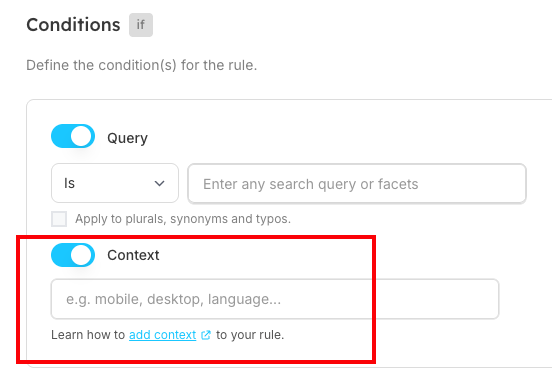
Context means the situation in which a user is performing the search. It helps you apply a rule only to specific users or scenarios instead of applying it to everyone.
You use Context Condition when you want a rule to work only in certain situations like:
- Device Type - Apply the rule only for mobile users or only for desktop users. (Example: Show different results on mobile vs desktop, works with responsive search interface)
- Language - Apply the rule only when the user is searching in a specific language. (Example: A rule should work only for English users)
- Custom Parameters - Any extra conditions your system uses (like user group, region, campaign, etc.). (Example: A rule should only apply to users from "India" or "VIP customers")
In simple words: Context decides who the rule applies to, and in what situation the user is searching. If you don't need targeting, you can skip adding context.
Rule Configuration Options
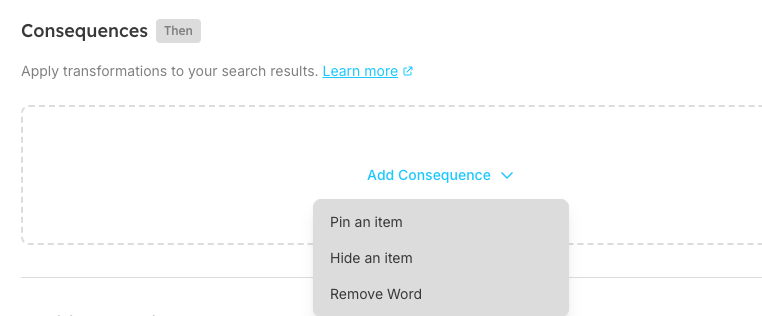
| Configuration Type | Consequences Section | Description | Timeframe (UTC) |
|---|---|---|---|
| Configuration | You can choose from:
| Optional text describing what the rule does. | Allows scheduling:
Great for seasonal campaigns. |
| Details & Options | Choose the action to be performed when rule conditions are met | Helps identify and organize rules for better management | Control when rules are active for time-sensitive campaigns |
Editing and Managing Rules
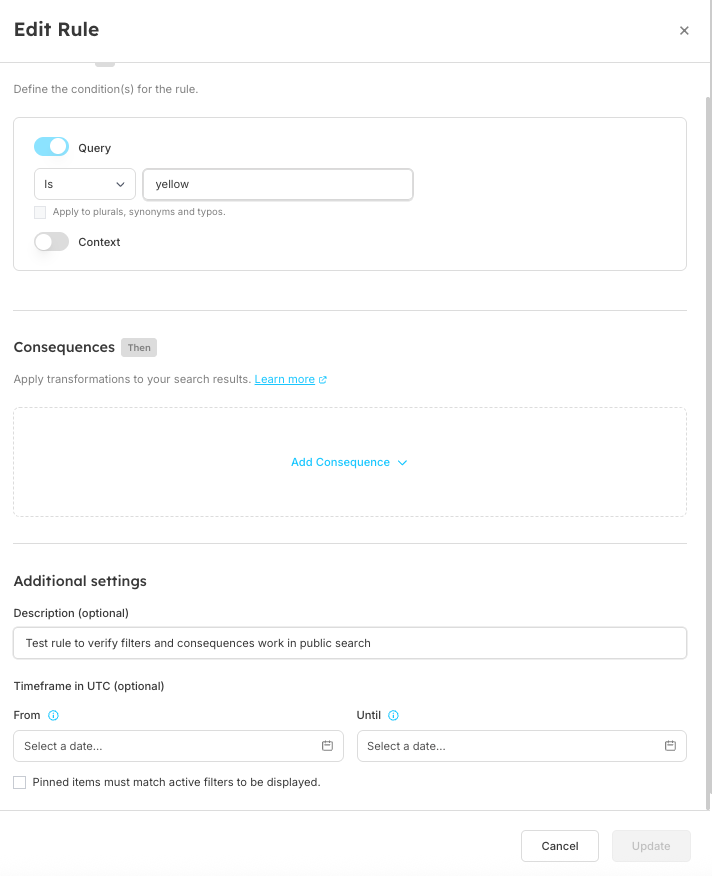
| Action Type | Edit a Rule | View Rule Details | Delete a Rule | Enable/Disable Rule |
|---|---|---|---|---|
| Steps |
| Click View () to preview. |
| Use Toggle () to activate or deactivate without deleting. Pending changes will show:
|
| Purpose | Modify existing rule conditions and consequences to improve search results | Preview rule details without making any changes | Permanently remove unwanted or outdated rules from the system | Temporarily control rule activation without permanent deletion |
Performing Multiple Actions at Once
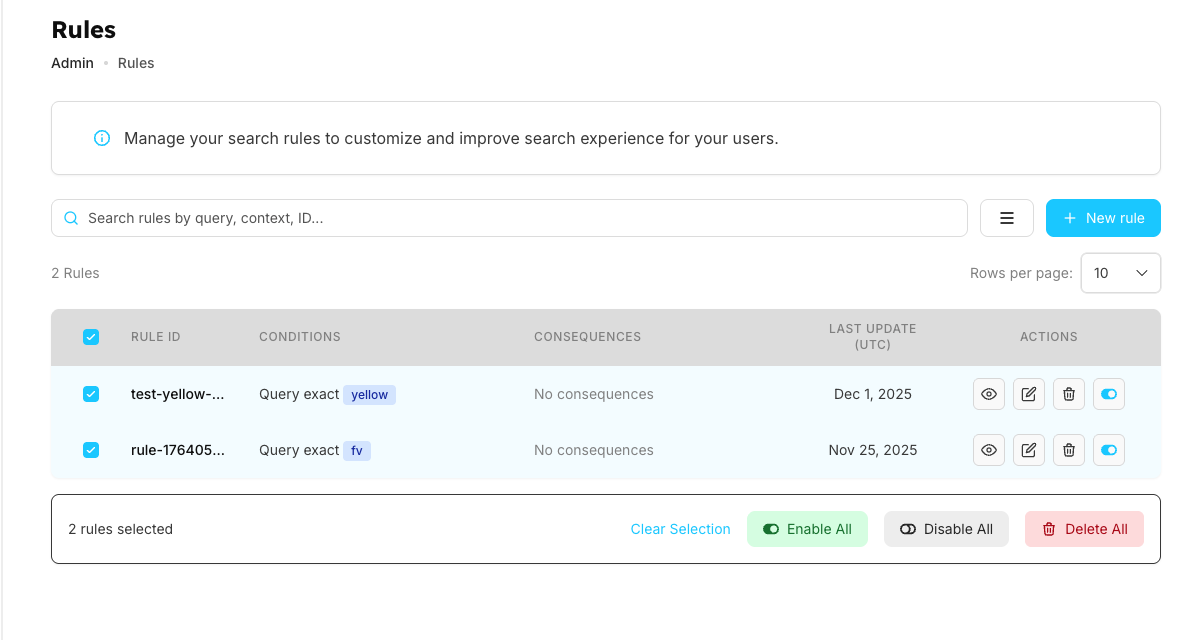
When you select multiple rules by checking their checkboxes, you can perform bulk actions on them.
Bulk Actions Available:
- Clear Selection - Unselect all currently selected rules
- Enable All - Activate all selected rules at once
- Disable All - Deactivate all selected rules at once
- Delete All - Permanently remove all selected rules
How it works:
- Select rules by clicking the checkboxes next to them
- The system shows "X rules selected" at the bottom
- Choose your desired bulk action from the available buttons
- Confirm the action when prompted
Notes
-
A rule can have multiple consequences
-
Search matching is case-insensitive (follows search configuration settings)
-
Changes are tracked in API logs
Frequently Asked Questions
When to pin items?
Use for:
-
Promotions
-
Seasonal campaigns (schedule with timeframes)
Difference between Hide and Remove Word?
- Hide: Removes item from results (similar to banned expressions but for items)
- Remove word: Removes word from query (see stopwords management for details)
Should I apply plurals/synonyms/typos?
Use when you want broader matching.