Stopwords Management
Overview
The Stopwords Management feature helps users manage the list of stopwords within the system. Stopwords are common words (like "a", "the", "and", etc.) that are usually ignored during search operations to improve search accuracy and performance. This allows administrators to view, add, disable, and remove stopwords easily. For advanced search customization, see Rules Management. Stopwords work in conjunction with your search configuration .
Why Use Stopwords?
When the system performs a search, it ignores unnecessary filler words.
Example: Instead of searching for the full query: "the best stores in the city" The system ignores: the, in And searches only for: best, stores, city
You get full control to: - Decide which words should be ignored. - Add custom stopwords for project-specific needs. - Remove stopwords that you want the search engine to consider affecting search results. - Create advanced search rules for specific query handling.
Key Sections Of The Page
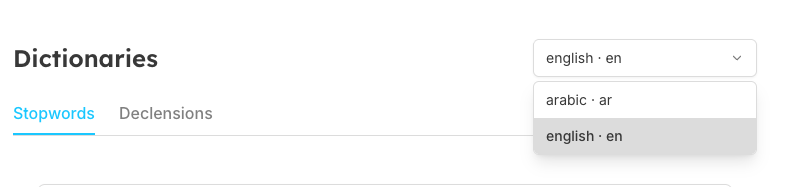
1. Language Selector (Top Right)
You can choose the language (e.g., English -- en) for managing stopwords. Each language has its own separate list, which integrates with your search configuration language settings.
2. Stopwords List Table
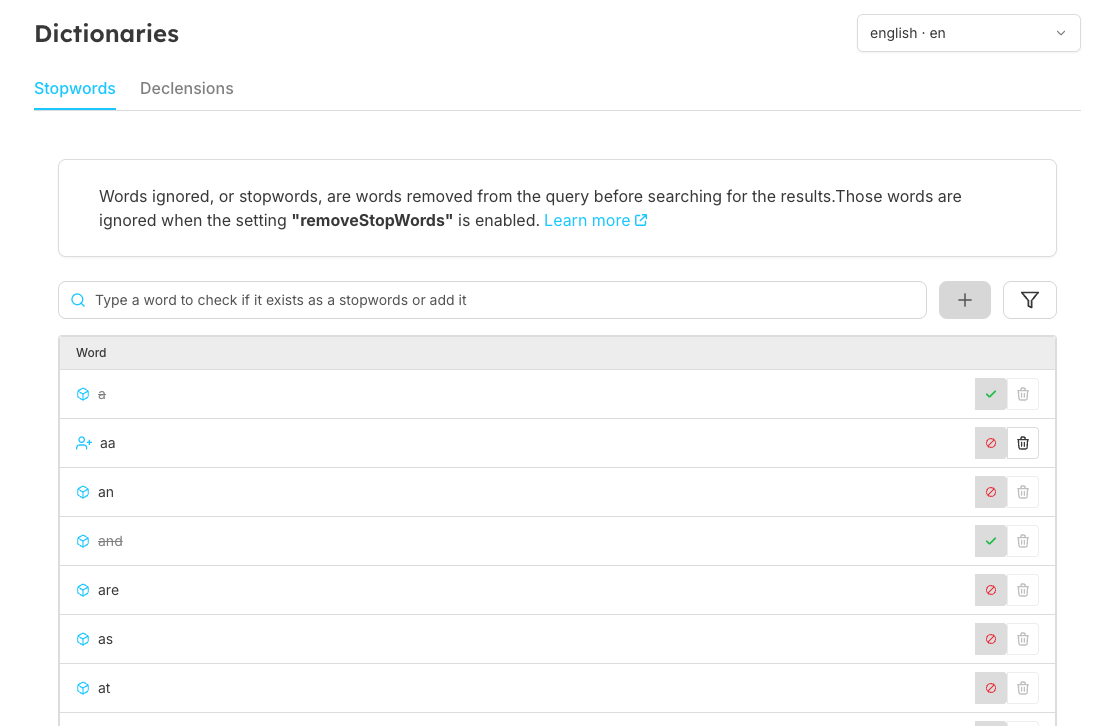
The table displays all stopwords with the following controls:
Stopwords Management Features
| Details Type | Word Sources | Status Toggle | Delete Action | Workflow Steps |
|---|---|---|---|---|
| Feature Icons | Default Custom | Enabled Disabled | Delete Button | Actions:
Complete workflow management with batch operations and confirmation dialogs |
| Description | Default: Pre-configured by Seekora system Custom: Added manually by user | Enabled: Word ignored during search Disabled: Word NOT ignored during search | Permanently removes word from system Note: Only custom words can be deleted | Main workflow functions for stopword management |
Example Workflows
Adding a New Stopword
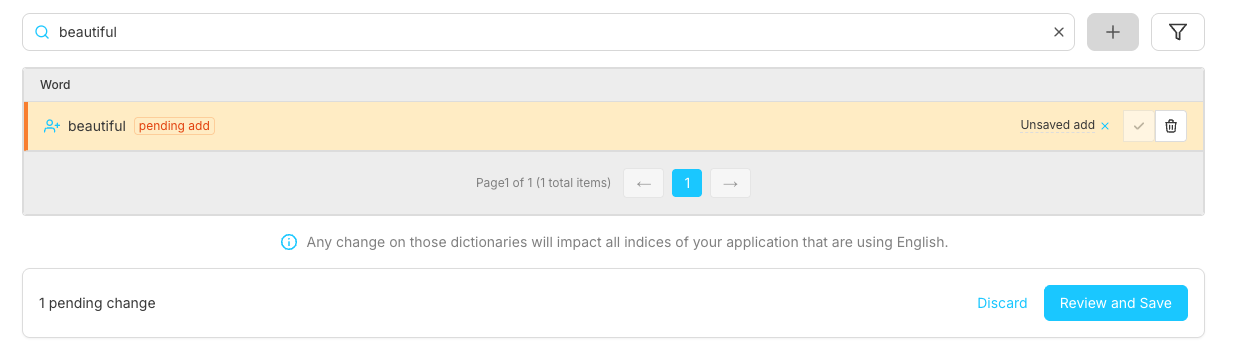
- Type the word in the input box.
- Click the "+" button.
- A Pending Confirmation Window will open.
- You can:
- Remove the added word
- Review it
- Save it
- Click Review and Save → then Save finally.
Removing a Stopword
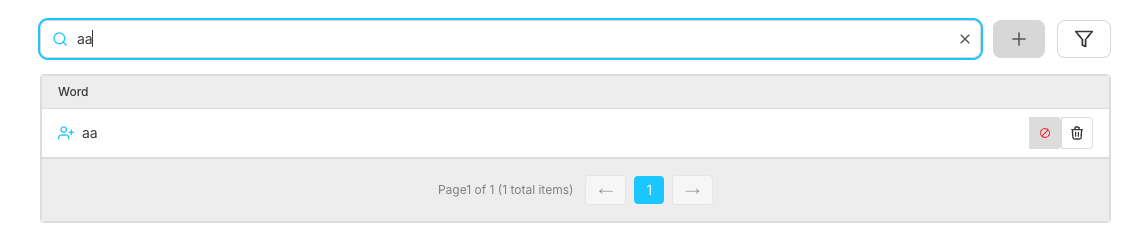
- Find the word in the list.
- Click the Delete icon.
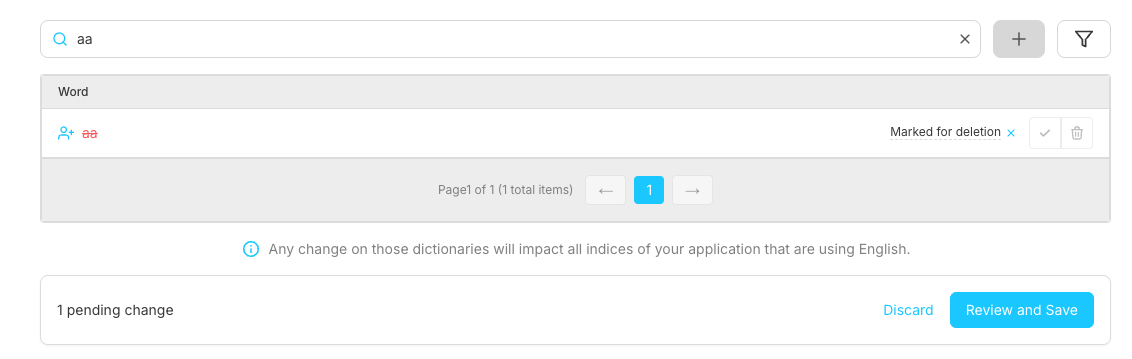
- The Pending Confirmation Window will open.
- Click Review and Save → then Save.
Note: Only user-added words can be removed.
Disabling a Stopword

- Click on the toggle button
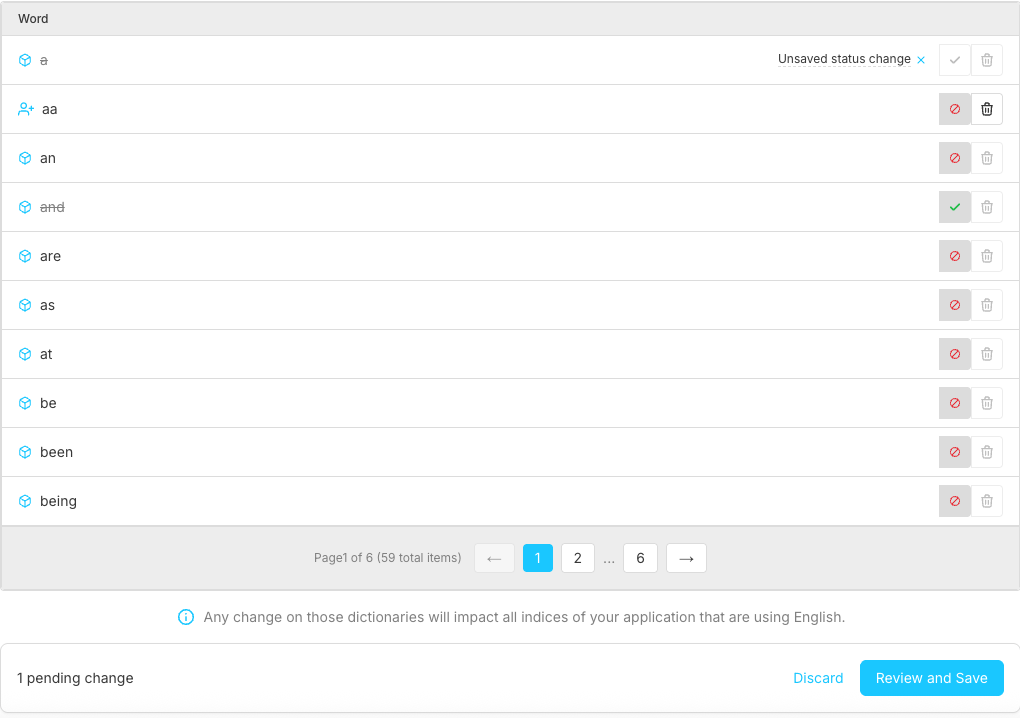
- The Pending Confirmation Window opens.
- Click Review and Save → then Save.
Note:
- Seekora default words cannot be deleted but can be disabled.
- You can perform all actions (Add, Disable, Remove) together and save in one go, similar to bulk rule management.
Frequently Asked Questions (FAQs)
| Question | Answer |
|---|---|
| What are stopwords and why should I use them? | Stopwords are common words (like "a", "the", "and") that are ignored during search to improve accuracy and performance. They help focus search results on meaningful terms rather than filler words, working with search configuration for better results. |
| Can I delete Seekora default stopwords? | No, Seekora default stopwords cannot be deleted permanently. However, you can disable them using the toggle button if you want the system to consider those words during search. |
| How do I add custom stopwords for my business? | Type the word in the input box, click the "+" button, then use the Pending Confirmation Window to review and save your changes. You can add business-specific terms that should be ignored during search. |
| Can I perform multiple actions before saving? | Yes! You can add, disable, and remove multiple stopwords in one session. All changes are batched and you only need to save once at the end using "Review and Save". |
| Are stopwords language-specific? | Yes, each language maintains its own separate stopwords list. You can switch between languages using the language selector in the top right corner. |
| What happens if I disable a stopword? | When you disable a stopword, the search engine will start considering that word during search operations. This means queries containing that word will include it in search matching, affecting what users see in the browse interface |
| Can I undo changes after saving? | You can reverse most actions: re-enable disabled words, disable enabled words, or add back deleted custom words. However, you cannot restore deleted custom words - they need to be added again manually. |
| What are some examples of good custom stopwords? | Business-specific terms like "shop", "store", "buy", "sale", brand names that appear frequently, or location-specific words that don't add search value. Consider words your customers use frequently but don't help narrow down results. |