Activity Logs
Overview
Activity Logs provides a detailed history of actions performed within your project. It allows you to review and filter activities, trace changes, and support auditing or issue investigation when needed.
How to Access Activity Logs
To access the Activity Logs feature in your account:
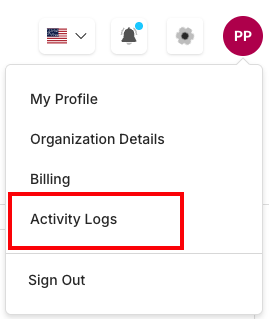
- Login to your account and navigate to your dashboard
- Locate the user profile menu in the top-right corner of the interface
- Click on your profile icon (typically displays your initials, e.g., "PP")
- Select "Activity Logs" from the dropdown menu
What You Need to Access Activity Logs
To view Activity Logs in your Seekora platform, ensure you have:
✅ Active Account Status
- Your user account must be active and not suspended
- You must be logged into the Seekora platform successfully
✅ User Role with Audit Permissions
- Your user role must include audit/logging permissions (managed in User Management)
Activity Logs Dashboard
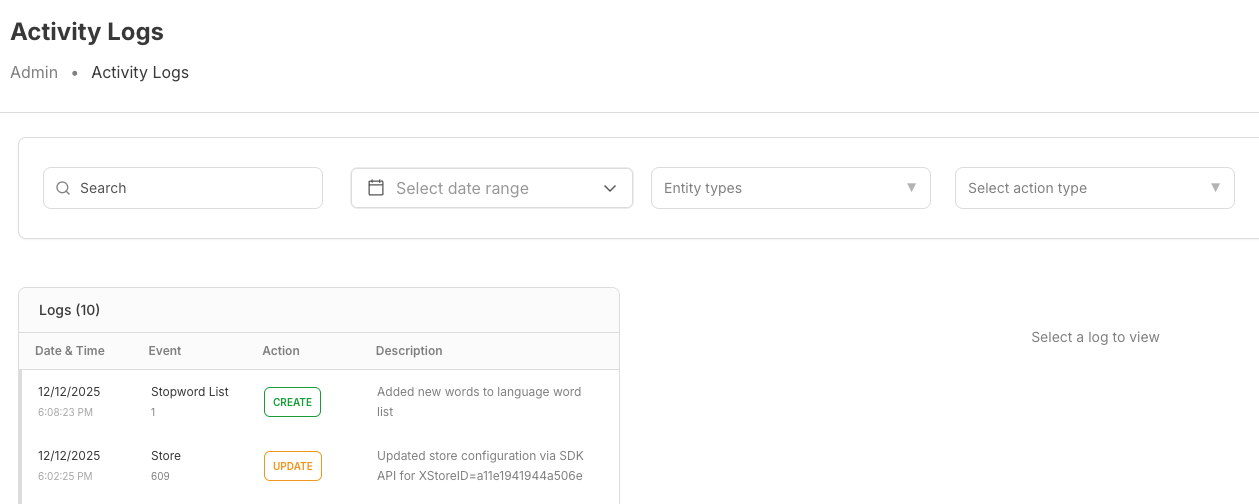
The Activity Logs provides a comprehensive view of all system activities with powerful filtering capabilities:
Filter Options
Search and Date Range
The Activity Logs provides multiple filtering mechanisms to help you find specific activities:
| Filter Type | Description | Usage Examples |
|---|---|---|
| Search | Text-based search across all log entries | Search for "Stopword List", specific IDs, billing transactions |
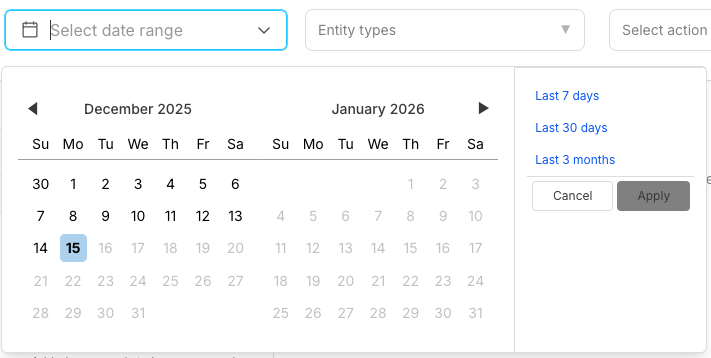
| Date Range | Filter activities by specific time periods | Last 7 days, Last 30 days, Last 3 months,Custom date ranges |
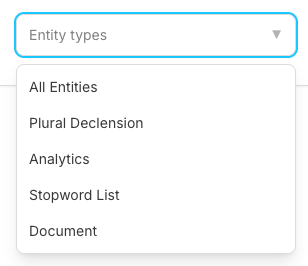
| Entity Types | Filter by specific object or feature types | All Entities, Analytics, Plural Declensions, Stopwords, List Documents, Store Configuration |
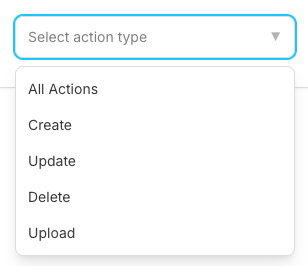
| Action Types | Filter by specific actions performed | Create, Update, Delete, Upload operations |
Date Range Selection
Choose from predefined time periods or set custom ranges:
Entity Type Filtering
Filter activities by specific system entities:
Action Type Filtering
Filter by specific action types performed in the system:
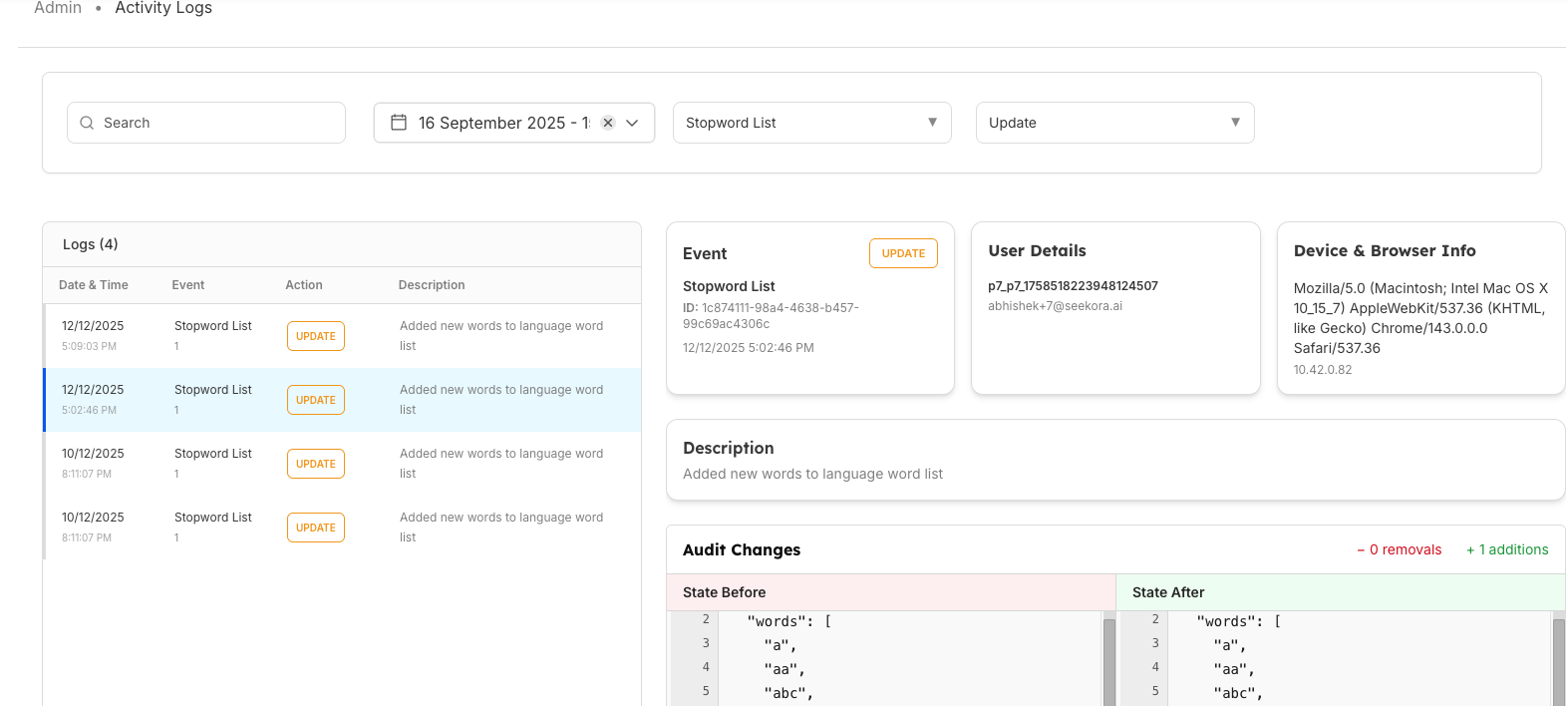
Filtered Results Display
When filters are applied, the interface shows the filtered results:
Common Use Cases
| Use Case | Scenario | Steps to Follow |
|---|---|---|
| Tracking Accidental Changes | Something was accidentally added or modified causing issues |
|
| Auditing User Activities | Need to review all actions performed by a specific user or during a specific period |
|
| Loss Prevention Investigation | Data or configurations were lost and you need to identify the cause |
|
| System Change Analysis | Need to understand the impact of recent system changes |
|
Best Practices
| Category | Practice | Description |
|---|---|---|
| Regular Monitoring | Daily Review | Check recent activities for any unexpected changes |
| Weekly Audits | Review patterns and trends in system usage | |
| Incident Investigation | Use Activity Logs as the first step when issues arise | |
| Compliance Documentation | Maintain records for regulatory requirements (configure in Organization Details) | |
| Effective Filtering | Narrow Time Ranges | Start with smaller date ranges for faster results |
| Combine Filters | Use multiple filter types together for precise results | |
| Regular Searches | Save frequently used search terms for quick access | |
| Export Options | Document important findings for future reference |
Frequently Asked Questions
How far back can I view activity logs?
Activity logs are available for 90 days by default. For extended history or longer retention periods, please upgrade your plan or contact Seekora support based on your specific requirements.
How can I get notifications for specific activities?
While Activity Logs provides historical tracking, you can set up real-time alerts through the Alerts Management section and receive notifications when specific actions occur in your system.
How do I investigate data loss issues?
To investigate data loss: 1) Set the date range to when the loss was noticed, 2) Filter by DELETE actions, 3) Look for the specific entity types that were lost, 4) Review the descriptions to understand what was deleted and by whom.
Are system-generated activities also logged?
Yes, both user-initiated and system-generated activities are logged. System activities are typically marked with specific identifiers or descriptions to distinguish them from user actions.
Related Features
Security & Compliance
- User Management - Configure user roles and audit permissions for activity log access
- Profile Settings - Manage organization details and compliance information
- Notifications - Set up real-time alerts for immediate activity monitoring
System Monitoring
- Alerts Management - Configure proactive alerts for system events
- Orders Management - Track financial transactions and billing activities
- Store Configuration - Monitor store-related activities and changes