User Management
Overview
User Management in Seekora allows administrators to manage and control user accounts within the organization. This system provides comprehensive user lifecycle management including role assignment, profile management, and access control across different stores and organizational levels.
The user management displays all users with their assigned roles and provides easy access to edit permissions and manage user access to various system resources.
User Dashboard Interface
User Overview Display
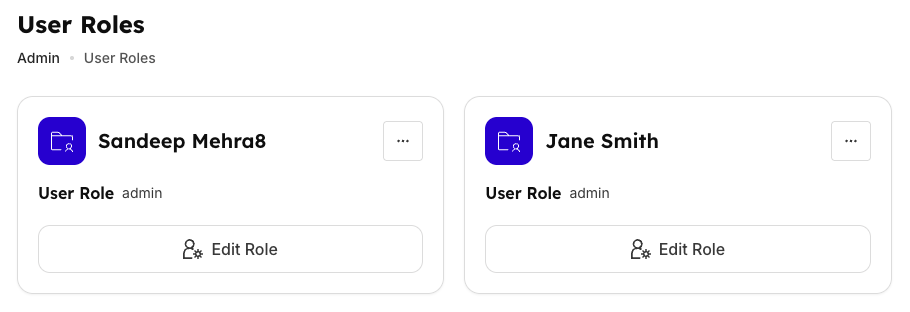
The User Management dashboard shows all users in your organization with the following information:
| User Information | Display Details | Actions Available | Status |
|---|---|---|---|
| User Name | Full name display with profile avatar | View profile, Edit details, Send message | Active |
| User Role | Current assigned role (admin, member, manager) | Change role, View permissions | Assigned |
| Edit Role Button | Quick access to role and permission management | Open permissions modal, Modify access | Available |
Edit Role Functionality
Role Management Modal
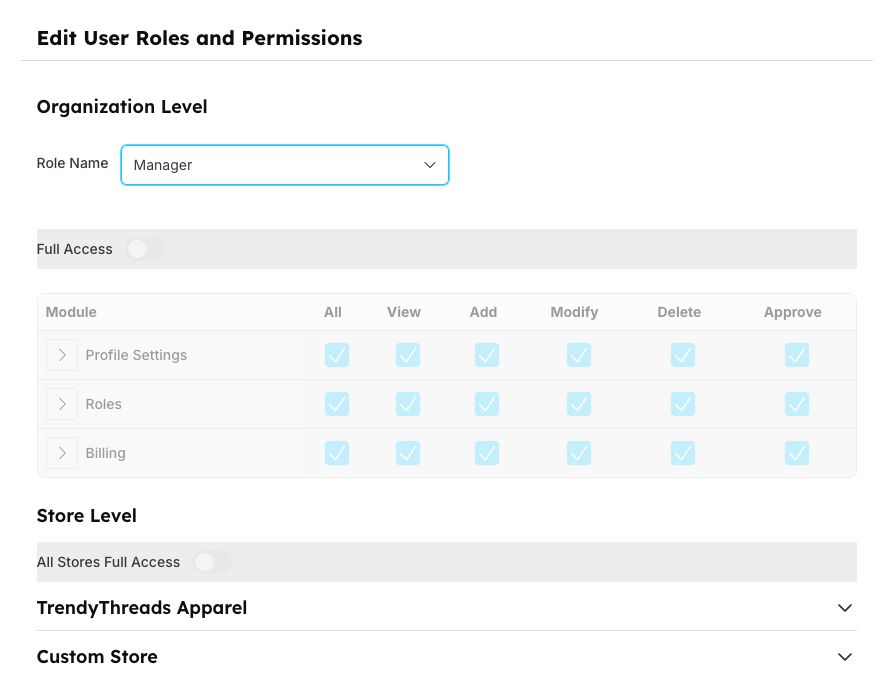
When you click "Edit Role" for any user, a comprehensive modal opens that provides:
Two-Level Permission Management
Organization Level
- Company-wide permissions that apply across all stores and resources
- Global access settings for the entire organization
- System-wide configurations including profile settings, roles, and billing
- Impact: Changes affect user access across the entire organizational structure
Store Level
- Individual store-specific permissions and access control
- Granular permissions for each store location separately
- Store-specific modules like Dashboard, Configure, Enhance, and Observe
- Impact: Changes only affect access to the selected store's resources
User Role Categories
Available User Roles
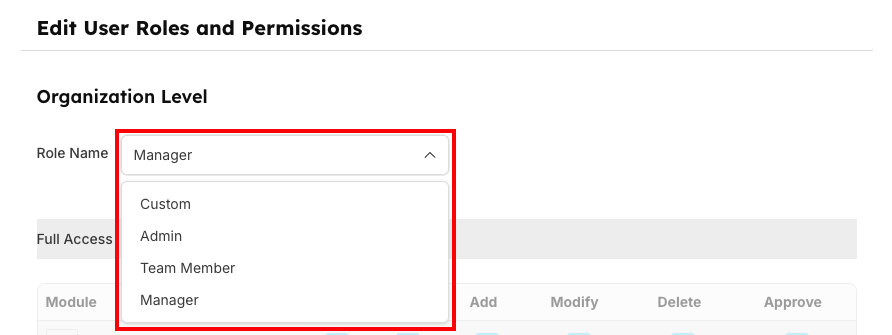
| Role Type | User Capabilities | Management Rights | Access Scope |
|---|---|---|---|
| Admin | Full system access, complete administrative control | All permissions, user management, system configuration | Global |
| Member | Standard user access to core functionalities | View, basic operations, assigned modules | Limited |
| Manager | Supervisory role with team and project management | Team management, approvals, reports, moderate admin | Extended |
User Management Workflows
User Lifecycle Management
| Process Stage | Actions Required | Administrator Tasks | Timeline |
|---|---|---|---|
| Role Assignment | Assign appropriate role based on responsibilities | Select role type, configure basic permissions | Setup Phase |
| Permission Customization | Fine-tune permissions for specific requirements | Adjust org/store level access, test permissions | Configuration |
| Access Validation | Test access and verify permissions work correctly | Verify functionality, document setup | Final Check |
Bulk User Management
- Multiple User Selection: Select and manage multiple users simultaneously
- Bulk Role Assignment: Apply the same role to multiple users at once
- Group Permission Updates: Update permissions for entire user groups
- Batch Operations: Perform bulk operations like activation, deactivation, or role changes
Integration with Roles and Permissions
User Management works seamlessly with the Roles and Permissions system:
- Unified Access Control: Users are assigned roles that define their permissions
- Cross-Reference Management: Easy navigation between user profiles and role definitions
- Consistent Policy Application: Ensure uniform permission application across all users
- Centralized Administration: Single point of control for all access management