Notifications
Overview
The Notifications system keeps users informed about important events, updates, and activities within the Seekora platform. The notification system provides real-time alerts for various actions like payment confirmations, store creation, account verification, team invitations, and other system events. Users can easily manage, view, and organize their notifications through an intuitive interface.
Why Use Notifications?
Notifications help you stay updated on:
- Payment Processing - Confirmation of successful transactions (manage in Orders Management)
- Store Management - Updates on store creation and configuration
- Account Activities - Verification status and account changes
- Team Collaboration - Invitations and team-related updates
- System Updates - Important platform announcements
Business Benefits:
- Stay Informed: Never miss important updates or confirmations
- Quick Actions: Respond promptly to time-sensitive notifications
- Organized Workflow: Manage notifications efficiently with filtering and sorting
- Team Coordination: Keep track of collaboration invites and updates

The notification system uses a bell in the top navigation bar. When you have unread notifications:
- Active Indicator: A blue dot appears on the bell icon
- No Notifications: Bell icon appears without any indicator
- Real-time Updates: New notifications instantly update the indicator
Quick Notification Dropdown
Accessing Quick View
Click the bell icon to open the quick notification dropdown that provides:
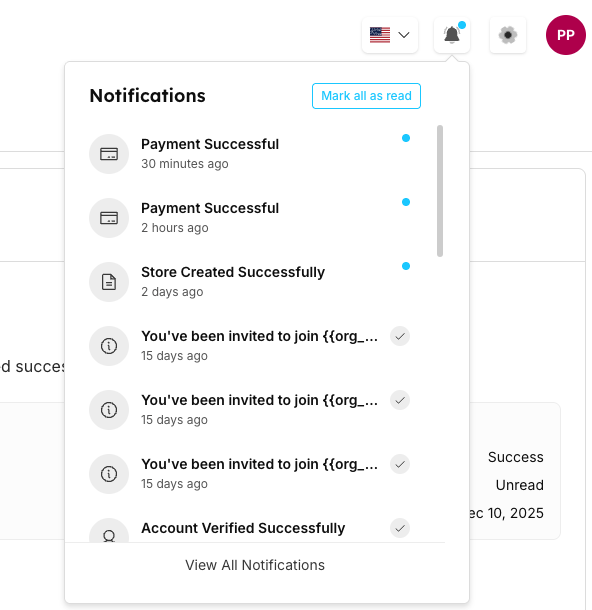
Quick Dropdown Features
| Component | Description & Function |
|---|---|
| Header Section | Title: "Notifications" with quick action button |
| Notification List | Recent Items: Shows latest notifications with: |
| Footer Action | "View All Notifications": Link to open the comprehensive notifications page with complete management features including: |
Sample Notification Types
- Payment Successful - Payment processing confirmations
- Store Created Successfully - New store setup notifications
- Account Activities - Verification and account updates
- Team Invitations - Collaboration and team join requests
Detailed Notifications Page
Accessing Full Notifications
Click "View All Notifications" to open the comprehensive notifications management page:
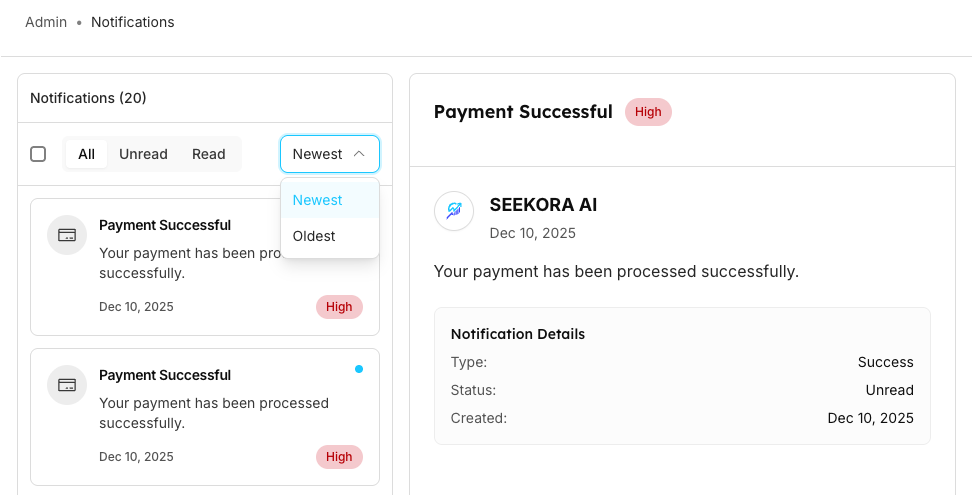
Page Layout and Features
| Section | Features | Functionality |
|---|---|---|
| Filter Panel | Status Filters: | Filter and organize notifications based on read status and chronological order for better management |
| Notifications List | Detailed View: | Comprehensive view of all notifications with complete context and metadata for better understanding |
| Pagination | Page Controls: | Navigate through large numbers of notifications efficiently with page-by-page browsing |
Bulk Management Features
Selection and Batch Actions
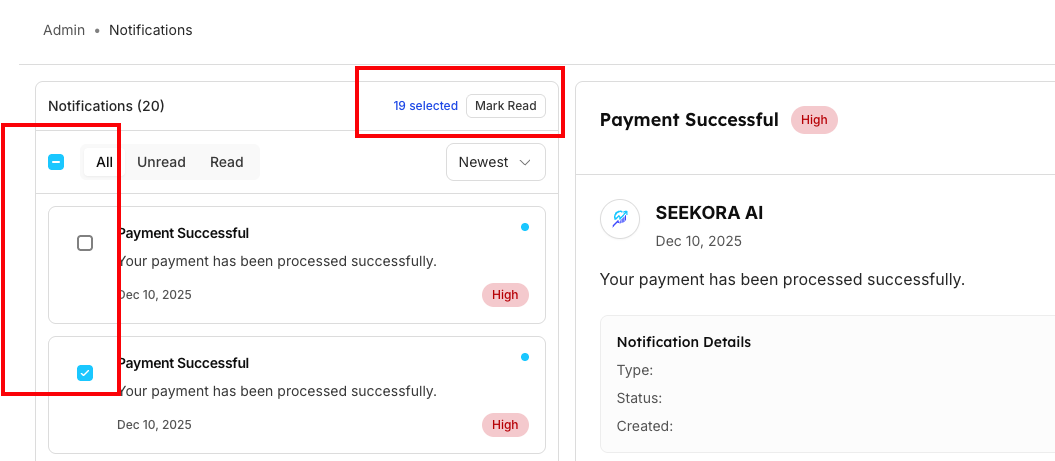
Bulk Action Options
| Action Type | Select Multiple | Mark as Read | Batch Operations |
|---|---|---|---|
| Selection Method | Checkboxes: | Mark Read Button: | Counter Display: |
| Functionality | Click checkbox next to notifications to select multiple items for batch operations | Mark multiple selected notifications as read simultaneously | Perform actions on multiple notifications at once for efficient management |
Notification Types and Categories
System Notification Categories
| Category | Payment & Billing | Account & Security | Store Management | Collaboration |
|---|---|---|---|---|
| Notification Types |
|
|
|
|
| Priority Levels | High Priority: Payment failures, billing issues | High Priority: Security alerts, verification needed | Normal Priority: Routine updates and confirmations | Normal Priority: Team invites and updates |
Best Practices
Notification Management Tips
| Practice Type | Regular Monitoring | Priority Management | Bulk Operations |
|---|---|---|---|
| Recommendations |
|
|
|
Notes
- Real-time Updates: Notifications appear instantly when events occur
- Persistent Indicator: Blue dot remains until notifications are marked as read
- Cross-Platform: Accessible from any page within the Seekora platform
- Auto-Pagination: Large notification lists are automatically paginated
- Timestamp Accuracy: All times displayed in user's local timezone
Frequently Asked Questions
How do I know when I have new notifications?
Look for the blue dot indicator on the bell icon in the top navigation. The dot appears whenever you have unread notifications.
Can I mark all notifications as read at once?
Yes! Use the "Mark all as read" button in the quick dropdown, or select multiple notifications in the full page view and use the "Mark Read" bulk action.
What do the priority badges mean?
- High Priority: Urgent notifications requiring immediate attention (payments, security)
- Normal Priority: Standard notifications for routine updates and confirmations
How far back can I view notifications?
The system maintains a complete history of your notifications with pagination. You can navigate through all past notifications using the page controls.
Can I filter notifications by type?
Currently, you can filter by read/unread status and sort by newest/oldest. Individual notification types are identified by their icons and content.
Are notifications deleted automatically?
Notifications are retained in the system for historical reference. They are not automatically deleted but can be managed through read/unread status.
Related Features
Account & Security Management
- Profile Settings - Manage personal information and security preferences that affect notifications
- Activity Logs - Review detailed logs of security events and system activities
- User Management - Configure team permissions and collaboration settings
Business Operations
- Orders Management - Monitor payment processing and transaction notifications
- Alerts Management - Set up custom billing and usage alerts
- Store Configuration - Manage store settings that trigger notifications