Overview
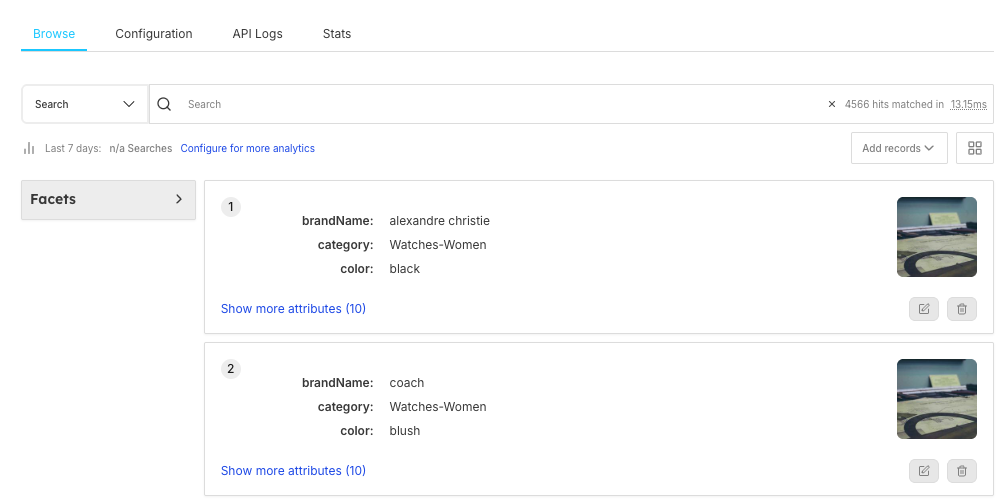
The Browse section is the main search and product discovery interface within the Store management system. It allows administrators to search through the product catalog, view detailed product information, and analyze search results in different formats. This powerful tool helps you understand how products are being indexed, searched, and displayed to end users. You can monitor performance through Analytics and track API calls via API Logs.
Why Use Browse?
The Browse section gives you comprehensive control and visibility over your product catalog:
Browse Feature
Description
Search and Filter
Search and filter products in real-time with instant results and dynamic filtering capabilities
Product Analysis
View product attributes and metadata for comprehensive product information analysis
Performance Analytics
Analyze search performance and results to optimize search quality and user experience (see
Stats for historical data)
Analytics Configuration
Configure search analytics for better insights and detailed performance monitoring (adjust in
Configuration)
Testing Environment
Test search behavior before deploying to production to ensure optimal user experience (monitor with
API Logs)
Index Monitoring
Monitor product indexing and data quality to maintain search accuracy and completeness
Real-World Example:
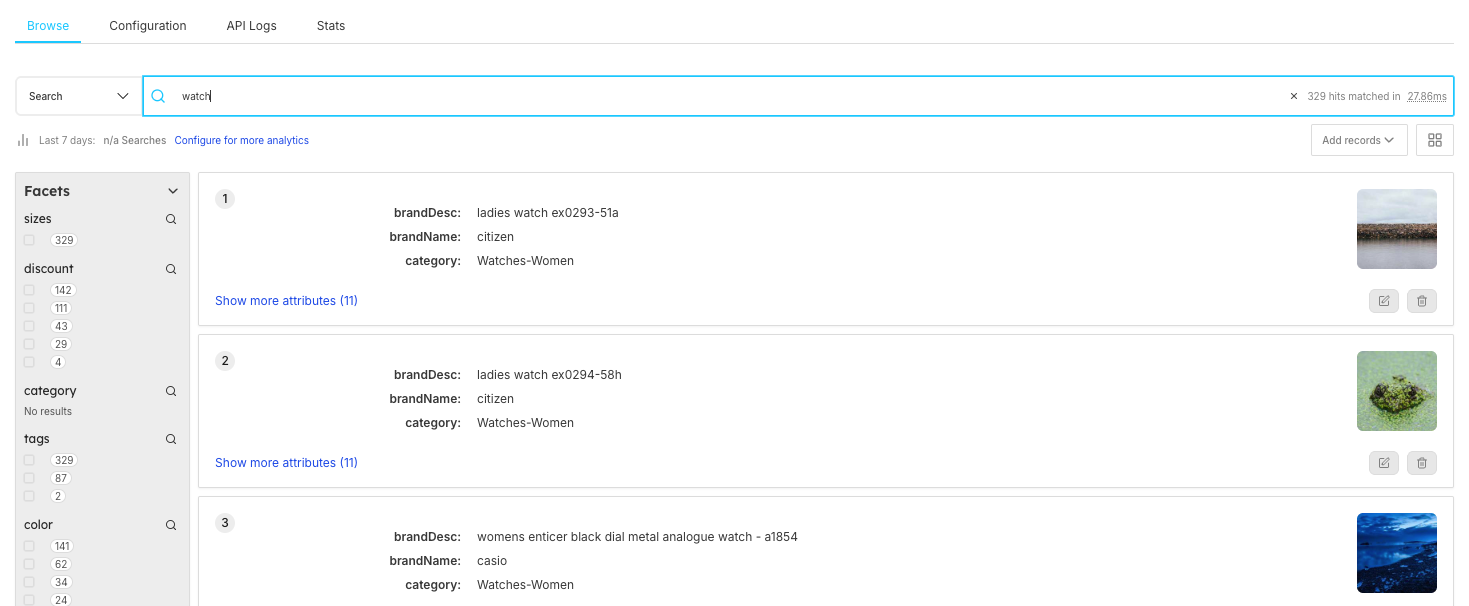
If you want to see how "watches" are being searched and what results appear, you can use Browse to test the search, check facets like brand and category, and ensure the right products are showing up. You can also track search performance in Analytics.
Key Sections of the Page
1. Search Bar
The main search input where you can:
Search Function
Description
Query Testing
Enter search queries to test and validate search functionality and results accuracy
Search Type Selection
Use the dropdown to select search type for different search modes and configurations (learn more in
Configuration)
Real-time Results
See real-time results as you type for immediate feedback and instant search validation
Search Results Display:
Shows hit count and response time (e.g., "4566 hits matched in 15.46ms")
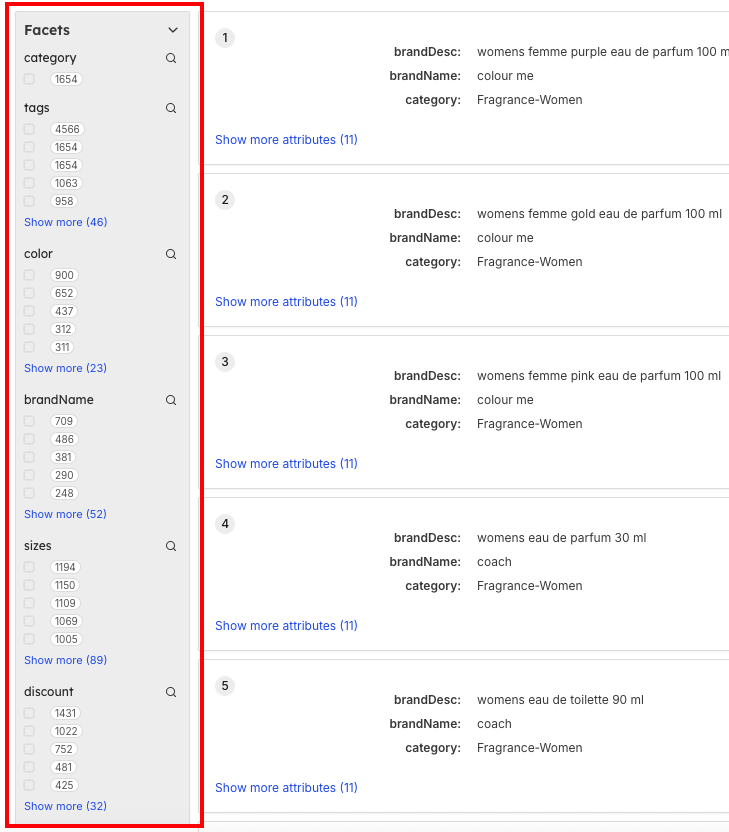
2. Facets Panel
Located on the left side, allows you to:
Facet Function
Description
Expand/Collapse
Expand/Collapse facets using the arrow for better organization and space management
Result Filtering
Filter results by different attributes to narrow down search results and improve precision
Filter Options
See available filter options for each facet category to understand filtering possibilities
Common facet types include:
Category
Organize and filter products by category hierarchies and classifications (1654 items available)
Tags
Filter products by tags and labels for keyword-based searches (4566, 1654, 1063, 958 items per tag)
Color
Filter products by available colors for visual preference matching (900, 652, 437, 312, 311 items per color)
Brand Name
Filter products by specific brand names for brand-focused searches (709, 486, 381, 290, 248 items per brand)
Sizes
Filter products by size options for size-specific product searches (1194, 1150, 1109, 1069, 1005 items per size)
Discount
Filter products by discount availability and percentage ranges (1431, 1022, 752, 481, 425 items per discount level)
3. Search Results Area
The main content area displaying:
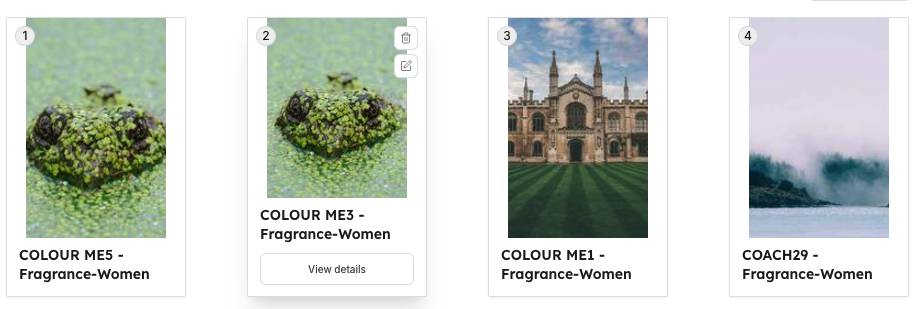
Product Cards
Each result shows:
Product Number
Sequential numbering (1, 2, 3...) for easy result identification and ranking position
brandDesc
Product description including details like "ladies watch ex0293-51a", "ladies watch ex0294-58h", "women enticer black dial metal analogue watch - a1854"
brandName
Brand name information such as "citizen", "casio" for easy brand identification
category
Product category classification like "Watches-Women" for organized product grouping
Product Image
Product image thumbnail displayed on the right side for visual identification and quick product recognition
Show more attributes
Expandable link showing "(11)" additional attributes that can be viewed for more detailed product information (configure attributes in
Store Management)
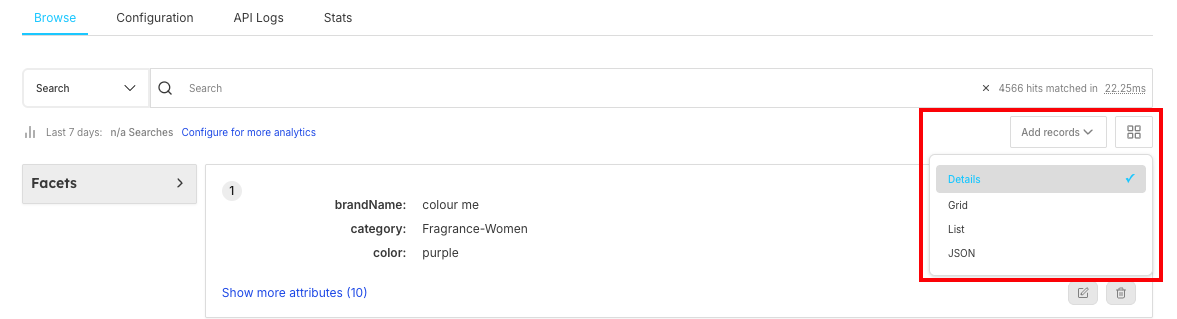
View Options
Multiple ways to view results:
Details View
Shows product attributes in detail for comprehensive product analysis and verification
Grid View
Visual grid layout of products optimized for image-based browsing and comparison
List View
Compact list format for efficient scanning and higher result density per screen
JSON View
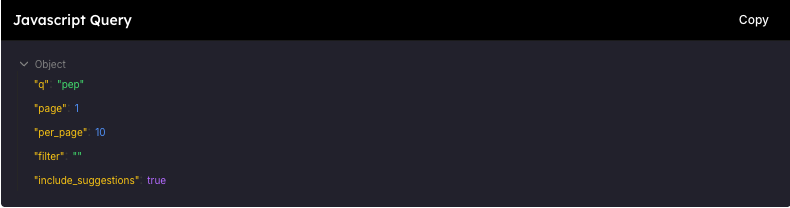
Raw JSON data format for technical analysis, debugging, and data export purposes (monitor API calls in
API Logs)
Each product has action buttons:
Open detailed product information for comprehensive analysis and data inspection
Remove from search results for result management and data cleanup operations
Search Features
Basic Search
Search Step
Action Description
1. Enter Search Term
Enter your search term in the search bar to initiate product discovery and search functionality
2. Select Search Type
Select search type from dropdown (if available) to specify search mode and behavior preferences
3. View Real-time Results
View results in real-time as search processes and displays matching products instantly
4. Check Performance
Check hit count and response time to evaluate search performance and result quality
Result Analysis
Performance Metrics
Monitor response time and hit count to evaluate search performance and speed optimization
Relevance Scoring
Analyze how well results match the query for search accuracy and relevance optimization
Attribute Completeness
Check if products have all required data for data quality assurance and completeness validation
Search Quality
Identify missing or incorrect results to improve search accuracy and result quality
View Modes Explained
Details View
Best for: Comprehensive product analysis
- Shows all product attributes
- Easy to read format
- Quick attribute scanning
- Ideal for data verification
Grid View
Best for: Visual product browsing
- Image-focused layout
- Similar to e-commerce experience
- Good for visual products
- Quick visual comparison
List View
Best for: Efficient scanning
- Compact format
- More results per screen
- Fast scrolling
- Text-focused information
JSON View
Best for: Technical analysis
- Raw data format
- API response structure
- Debugging purposes
- Data export and analysis
Response Time Monitoring
Response times depend on the search mode you selected during data import. Learn more about selecting search modes in Store Creation
Hit Count Analysis
Relevance Level
Analysis and Indicators
High Relevance
Many matches for broad terms indicating comprehensive product coverage and good indexing
Low Relevance
Few matches may indicate narrow search terms, missing product data, or indexing issues requiring investigation
Notes
📌 Important Notice
System Behavior
Search Results
Search results reflect current indexed data and may not include recent changes until reindexing
Performance Metrics
Performance metrics are displayed in real-time for immediate feedback and monitoring
Dynamic Facets
Facets are dynamically generated from available data based on current product attributes
View Modes
View modes don't affect underlying search logic - only the presentation format changes
Analytics Data
Analytics data may have slight delays due to processing time and data aggregation
Frequently Asked Questions
How often is the search index updated?
The search index is typically updated in real-time or near real-time, depending on your configuration. New products should appear within minutes of being added.
Products may show incomplete information if:
- Data hasn't been fully synced
- Required attributes are missing
- Product is still being processed
How do I report search issues?
Use the API Logs section to identify specific issues, then contact our Seekora technical team with the relevant log information and error details.
What should I do if I get no search results?
Possible Causes:
Indexing Issues
Products not properly indexed in the search system database
Search Specificity
Search terms too specific, resulting in overly narrow query parameters
Filter Restrictions
Filters too restrictive, eliminating all potential matching products
Synchronization
Data sync issues preventing updated product information from appearing
Solutions:
Solution Step
Action Description
1. Check Indexing Status
Verify product indexing status to ensure products are properly indexed in the search system
2. Broaden Search Terms
Try broader search terms to increase the scope of potential matching results
3. Clear All Filters
Remove all applied filters to eliminate restrictive conditions that may be limiting results
4. Verify Data Sync
Check and verify data sync processes to ensure product data is up-to-date and synchronized
Possible Causes:
Performance Issue
Description
Dataset Optimization
Large dataset without optimization causing slow query processing and response times
Query Complexity
Complex query processing requiring extensive computational resources and time
Server Resources
Server resource limitations affecting processing capacity and response speed
Network Connectivity
Network connectivity issues causing delays in data transmission and retrieval
Solutions:
Solution Step
Action Description
1. Optimize Queries
Optimize search queries to reduce complexity and improve processing efficiency
2. Check Server Resources
Monitor and upgrade server resources including CPU, memory, and storage capacity
3. Review Indexing Strategy
Analyze and optimize indexing strategy to improve search performance and data retrieval
4. Monitor Network
Monitor network performance and address connectivity issues affecting response times
Why am I getting incorrect search results?
Possible Causes:
Data Quality
Poor data quality leading to inaccurate search matching and irrelevant results
Categorization
Incorrect categorization causing products to appear in wrong search contexts
Missing Attributes
Missing attributes affecting search accuracy and product matching algorithms
Outdated Information
Outdated information in product database causing mismatched search results
Solutions:
Solution Step
Action Description
1. Audit Product Data
Conduct comprehensive audit of product data to identify and correct quality issues
2. Update Categories
Update product categories to ensure accurate classification and proper search targeting
3. Complete Attributes
Complete missing attributes to improve search matching and result accuracy
4. Refresh Information
Refresh product information to ensure current and accurate data in search results
What if products are missing from search results?
Possible Causes:
Missing Product Issue
Description
Indexing Delays
Indexing delays preventing newly added products from appearing in search results
Product Status Issues
Product status issues such as inactive or hidden products excluded from search
Synchronization Problems
Data synchronization problems causing product data to be out of sync with search index
Configuration Errors
Search configuration errors affecting product visibility and search scope settings
Solutions:
Solution Step
Action Description
1. Force Re-indexing
Force re-indexing to update search index with latest product data and ensure visibility
2. Check Product Status
Verify product status to ensure products are active and properly configured for search visibility
3. Verify Data Sync
Check and verify data synchronization processes to ensure product data is current and complete
4. Review Search Settings
Review and adjust search settings in
Configuration to ensure proper setup and product inclusion criteria