Store Operations
Overview
The Store Operations system in Seekora allows users to create, manage, and switch between multiple stores from a centralized interface. The store dropdown in the left sidebar provides quick access to all your stores and store management functions. This system enables seamless multi-store operations, allowing users to manage different business locations, brands, or product catalogs independently while maintaining centralized control. You can monitor operations through Analytics and track API usage via API Logs.
How to Use Store Management
Store management enables you to efficiently organize and operate multiple stores through these key functions:
- Access Store Dropdown - Click the store selector in the left sidebar to view all your stores
- Switch Between Stores - Select any store from the dropdown to instantly switch contexts
- Create New Stores - Use the "+ Create Store" button to add new store locations or brands (Store Creation Guide)
- Search Stores - Use the search functionality to quickly find specific stores by name or location
- Manage Store Settings - Access individual store configurations, API keys, and operational controls (Configuration Guide)
Store Dropdown Interface
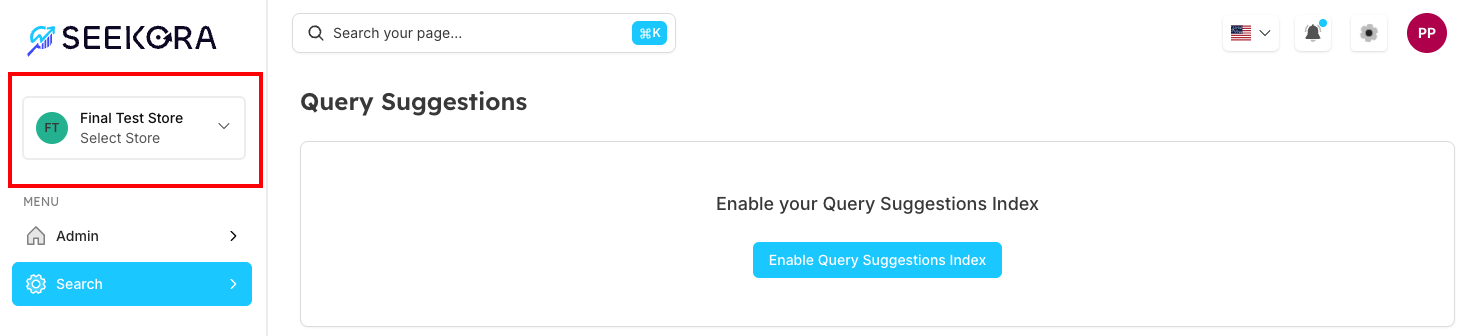
Accessing Store Management
The store management interface is located in the left sidebar of the dashboard:
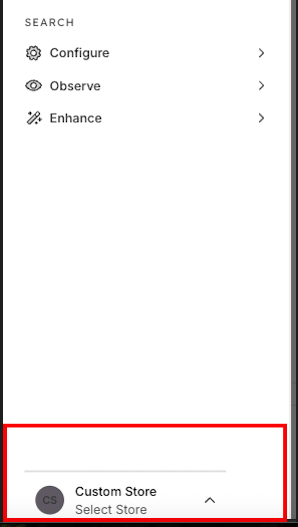
Mobile View Access
On mobile devices, the store dropdown is accessible through the navigation menu:
Store Dropdown Expanded View
Store Selection Interface
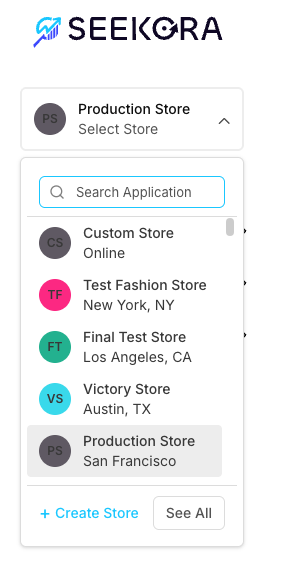
When you click on the store dropdown, it expands to show all available stores and management options:
Expanded Dropdown Features
| Section | Features | Functionality |
|---|---|---|
| Search Bar | Search Application: | Quickly locate specific stores when managing multiple locations |
| Store List | Store Entries: | View all available stores with their current status and location details for easy identification and selection |
| Action Buttons | + Create Store: Add new store - Learn about Store Creation Process | Quick access to store creation and detailed management functions |
Store Information Display
Each store in the dropdown shows:
- Store Name - Clear identification of each store
- Location - Geographic location or identifier (e.g., "New York, NY", "Los Angeles, CA")
- Status Indicator - Online/offline status with color coding
- Store Avatar - Visual identifier with initials or custom icon
Comprehensive Store Management
Accessing Detailed Store View
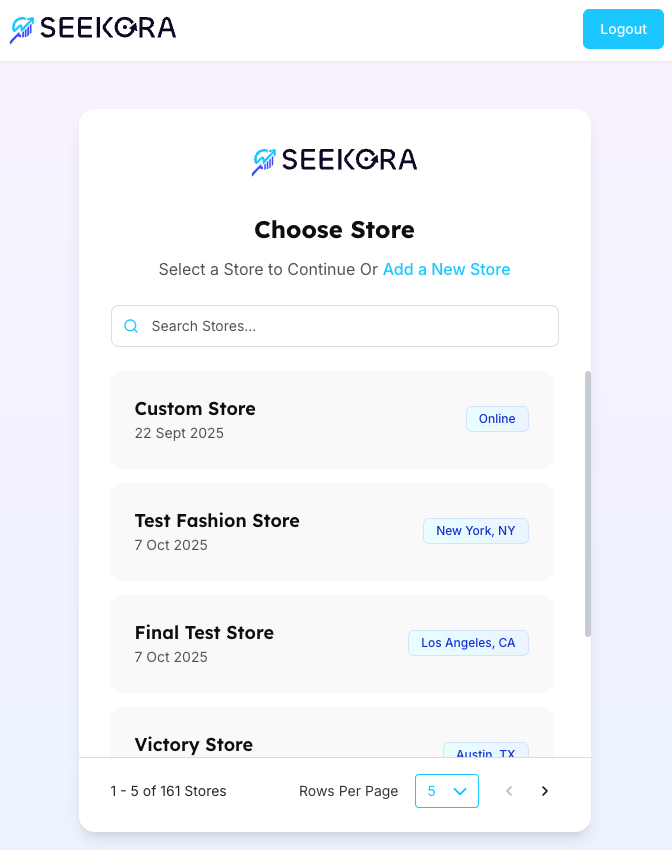
Click "See All" to open the comprehensive store management interface:
Store Management Features
| Feature | Description | Benefits |
|---|---|---|
| Header Section | Action Links: "Add a New Store" option - Click to create new stores directly from this interface | Clear navigation and immediate access to store creation functionality from the comprehensive management page |
| Search Functionality | Search Stores: Filter and find stores by: | Efficient store management for users with many stores or complex organizational structures |
| Store Cards | Detailed Information: | Comprehensive view of all store details at a glance with easy selection and management |
Store Welcome Dashboard
Accessing Store Dashboard
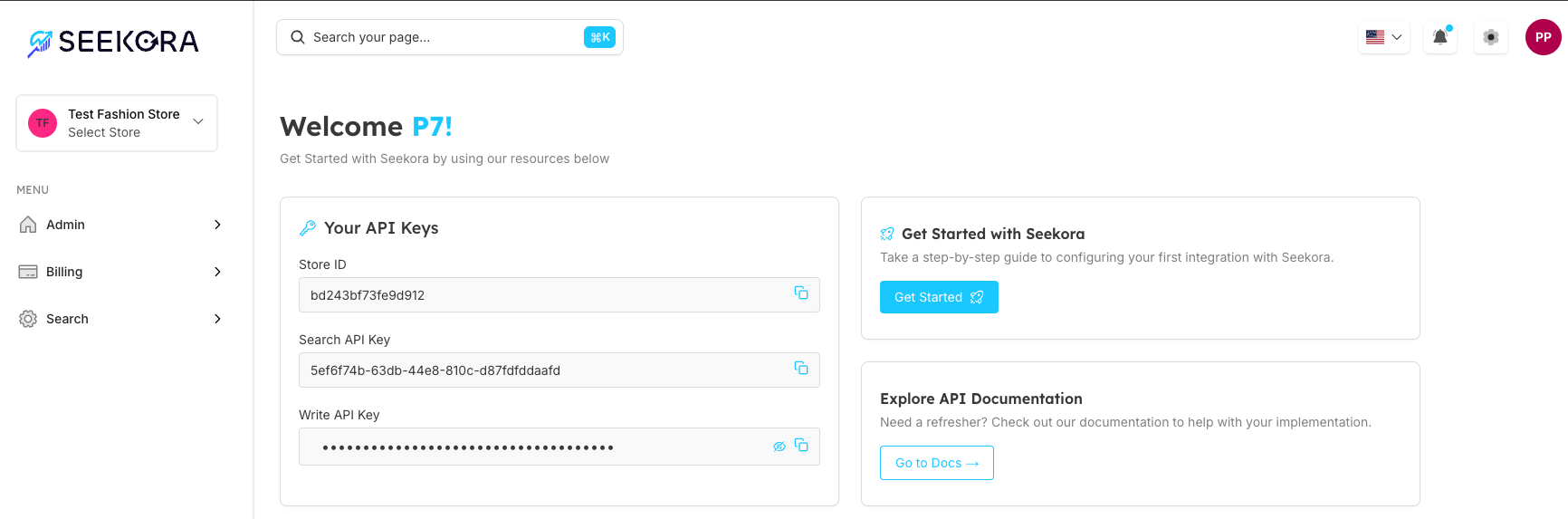
When you select a specific store, you'll be directed to the store's welcome dashboard:
Dashboard Components
| Dashboard Section | Features | Purpose |
|---|---|---|
| API Keys Section | Store ID: Unique store identifier | Essential integration credentials for connecting applications to Seekora services |
| Getting Started | Step-by-Step Guide: | Structured onboarding to help users successfully configure their first integration |
| Documentation Access | Go to Docs Button: Direct access to comprehensive documentation including Query Suggestions, Rules Management, and Analytics | Immediate access to detailed API documentation and implementation guides |
Store Management Workflows
Creating Your First Store
For users without any stores:
- Initial Access: Navigate to store dropdown in sidebar
- Create Store: Click "+ Create Store" button (Step-by-step Store Creation Guide)
- Store Setup: Complete store configuration process
- Dashboard Access: Automatically directed to new store dashboard
Managing Multiple Stores
For users with existing stores:
- Store Selection: Use dropdown to switch between stores
- Quick Search: Use search functionality to find specific stores
- Detailed Management: Access "See All" for comprehensive store overview
- Store Creation: Add additional stores as needed
Notes
📌 Important Features:
-
Store Context Switching: Each store maintains independent configurations and data
-
Centralized Management: All stores accessible from single interface
-
Quick Access: Streamlined navigation between stores and management functions
-
Comprehensive Search: Find stores quickly even with large store inventories
Frequently Asked Questions
How many stores can I create?
The number of stores you can create depends on your subscription plan.
Can I switch between stores quickly?
Yes! Use the store dropdown in the sidebar for instant switching between stores. Your current context will change to the selected store immediately.
What information do I need to create a new store?
Store creation typically requires basic information like store name, location, and initial configuration settings. For detailed requirements and step-by-step guidance, see our complete Store Creation Documentation
How do I get API keys for integration?
Each store's dashboard displays the unique API keys needed for integration. Use the copy buttons to securely transfer keys to your development environment.