MANAGE QUERY SUGGESTIONS
Overview
The Manage Query Suggestions section allows you to view, monitor, and control both auto-generated suggestions (from Analytics) and manually added suggestions. This unified interface gives you complete visibility and control over what suggestions appear to your users.
Accessing Manage Query Suggestions
From Data Sources Section
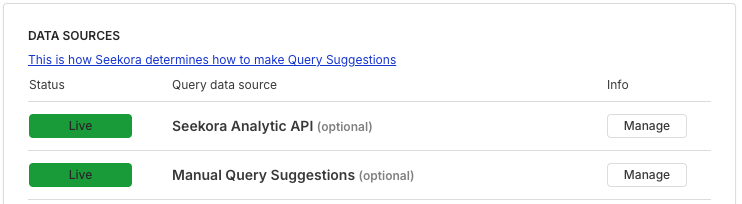
Available Management Options:
- Seekora Analytic API - Click "Manage" to view auto-generated suggestions
- Manual Query Suggestions - Click "Manage" to add/edit custom suggestions
SEEKORA ANALYTICS API
What is Seekora Analytics API?
AI-powered auto-generated suggestions based on actual user search queries from your analytics data. Our intelligent system analyzes what real users are searching for, reflecting current trends and popular queries.
Prerequisites:
- Analytics API must be properly configured in your UI
- Search events must be sent correctly from your application
- Analytics data collection must be active
Note: If suggestions are not appearing, verify that your analytics integration is configured correctly and sending search events. Without proper event tracking, the system cannot generate suggestions.
Accessing Analytics View
Steps:
- Go to Query Suggestions → Overview
- In Data Sources section, find Seekora Analytic API
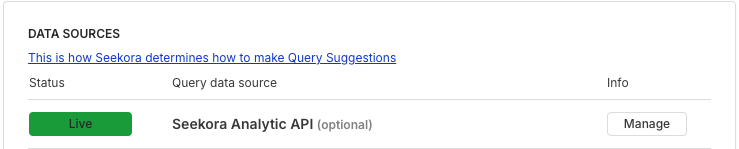
- Ensure it's enabled (green "Enabled" or "Live" badge)
- Click "Manage" button
Analytics Interface
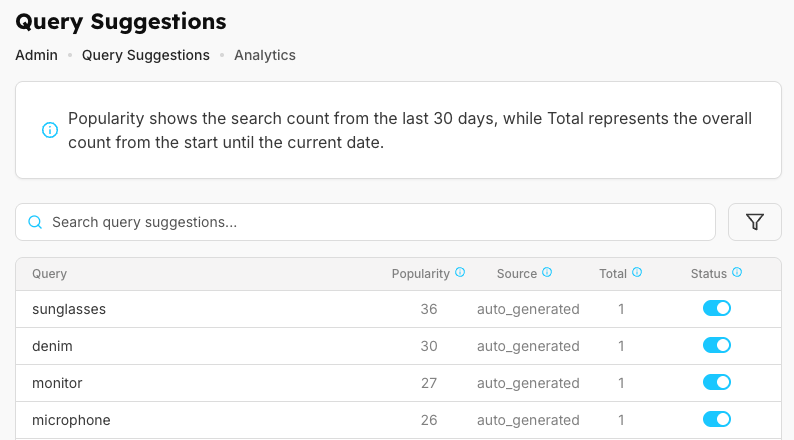
Info Box
Key Metrics:
| Metric | Description | Time Period | Use Case |
|---|---|---|---|
| Popularity | Number of times searched in last 30 days | Last 30 days | Shows current trends, Useful for seasonal/trending topics |
| Total | Cumulative count from the beginning | All time | Shows long-term popularity, Useful for evergreen content |
Search and Filter

Functionality:
- Search across the Query column
- Real-time filtering
- Find specific suggestions quickly
Filter Panel
Icon: (right of search bar)
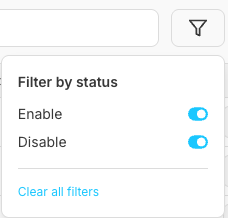
Filter Options:
| Filter Type | Option | Description |
|---|---|---|
| Filter by status | Enable (toggle) | Show only enabled suggestions that are currently active and visible to users |
| Filter by status | Disable (toggle) | Show only disabled suggestions that are currently inactive and hidden from users |
| Filter by source | Analytics (toggle) | Auto-generated suggestions created automatically from user search analytics data |
| Filter by source | Manual (toggle) | Manually added suggestions that were created and customized by administrators for promotional campaigns and strategic marketing purposes |
Analytics Suggestions Table
Table Columns
| Column | Description | Examples/Values | Analysis & Usage |
|---|---|---|---|
| Query | The actual search query/suggestion text | sunglasses, denim, monitor | Used for identifying specific search terms and their relevance |
| Popularity | Search count from last 30 days | sunglasses: 36, denim: 30, monitor: 27 | High numbers: Very trending, keep enabled. Medium numbers: Moderate interest, monitor. Low numbers: Consider relevance |
| Source | Where the suggestion originated | auto_generated (From Seekora Analytic API), manual (Manually added), facet (From Facet By Search) | Helps identify the origin and method of suggestion creation |
| Total | Overall count from start to current date | Cumulative search count over time | High Total + High Popularity: Consistently popular. High Total + Low Popularity: Declining interest. Low Total + High Popularity: New trending term. Low Total + Low Popularity: Niche/rarely searched |
| Status | Enable/disable toggle for each suggestion | Green "Enabled" or Gray "Disabled" | Click to disable suggestion (won't appear to users). Click again to re-enable |
Working with Analytics Suggestions
Viewing Performance
| Step | Action | Tasks | Purpose |
|---|---|---|---|
| Step 1 | Review Popularity column | Identify high-performing searches, Note declining trends | Monitor current search performance and identify trending patterns |
| Step 2 | Check Source | Verify auto_generated align with needs, Review effectiveness | Ensure suggestion sources match business objectives and evaluate their performance |
| Step 3 | Analyze Total vs Popularity (AI-Assisted Insights) | Compare long-term vs recent performance, Identify seasonal patterns, Spot emerging trends with intelligent analysis | Gain deeper insights into user behavior and market trends for strategic planning |
Managing Suggestions
| Action | Scenarios | Reasons | Business Impact |
|---|---|---|---|
| Disable | No longer relevant, Product/category discontinued, Poor search results, Off-season item | Remove outdated or ineffective suggestions that may confuse users or lead to poor search experiences | Improves user experience by showing only relevant and current suggestions |
| Re-enable | Seasonal item back in season, Product available again, Improved search results | Reactivate previously disabled suggestions when conditions change and they become relevant again | Maximizes suggestion effectiveness and ensures users see all appropriate options |
Using Filters
| Filter Type | Purpose | Actions | Use Cases |
|---|---|---|---|
| Show only enabled | See what users currently see | Verify all active are relevant, Quick audit of live suggestions | Monitor active user experience, Quality assurance checks |
| Show only disabled | Review what's turned off | Consider re-enabling seasonally, Clean up old items | Seasonal planning, Database maintenance |
| Combined filtering | Advanced targeted analysis | Enabled + Analytics: Active auto-generated, Disabled + Manual: Turned-off promotional terms, Analytics + Low Popularity: Underperforming auto-suggestions | Performance optimization, Strategic campaign management |
MANUAL QUERY SUGGESTIONS
What are Manual Query Suggestions?
Custom query suggestions that you manually add, edit, and manage. Perfect for promoting seasonal products, launching new items, highlighting campaigns, and strategic control.
Accessing Manual Suggestions
Steps:
- Go to Query Suggestions → Overview
- In Data Sources, find Manual Query Suggestions
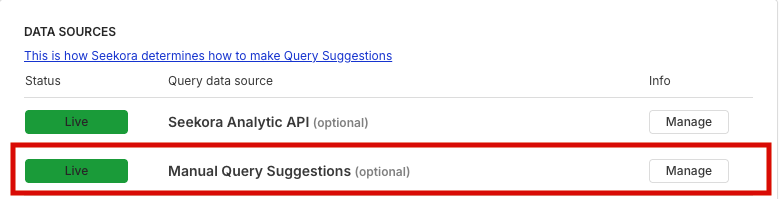
- Ensure it's enabled
- Click "Manage" button
Search and Add Section

Search and Add Controls
| Element | Description | Functionality | Purpose |
|---|---|---|---|
| Search Bar | Text input field for searching | Search through manual suggestions, Real-time filtering, Find specific suggestions | Quickly locate and filter existing manual suggestions for efficient management |
| Add Query Button | Cyan "+ Add Query" button (top right) | Opens Add Query Suggestion dialog | Create new manual suggestions to enhance search experience and promote specific terms |
Filter Panel
Filter by status:
- Enable (toggle)
- Disable (toggle)
Manual Suggestions Table
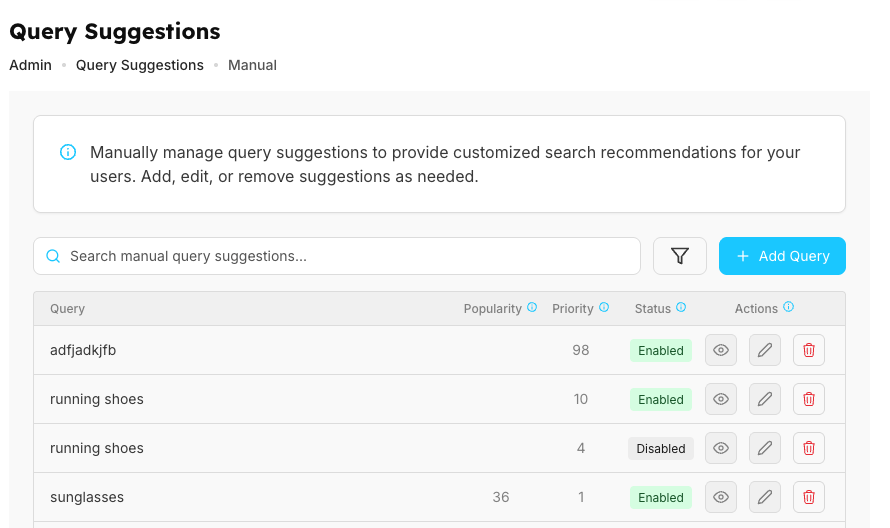
Table Columns
| Column | Description | Examples/Values | Priority Levels & Notes |
|---|---|---|---|
| Query | The search query text that will be suggested | running shoes, sunglasses | User-defined search terms for promotional and strategic purposes |
| Popularity | Times searched in last 30 days | Empty for new suggestions until users search | Tracks actual user engagement with the suggestion |
| Priority | Determines suggestion display order | running shoes: 10, sunglasses: 1 | 90-100: Top priority (campaigns, major promotions) 50-89: High priority (product launches) 10-49: Medium priority (important terms) 1-9: Low priority (supplementary) |
| Status | Active or inactive state | Green "Enabled" - Active, shown to users Gray "Disabled" - Inactive, not shown | Controls visibility to end users |
| Actions | Available management operations | View Icon: Preview details (read-only) Edit Icon: Modify suggestion Delete Icon: Permanently remove | Administrative controls for suggestion lifecycle management |
Managing Manual Suggestions
Suggestion Management Operations
| Operation | Action | Required Fields | Guidelines & Options |
|---|---|---|---|
| Adding New Suggestions | Click "+ Add Query" button to open dialog | Query: Enter search term (e.g., "winter jackets", "holiday gifts") Popularity: Set initial count (0-1 for new, 20-50 for promoted) Status: Enable (live immediately) or Disable (prepare for later) Priority: Set display order (1-100, higher = shown first) | Priority Levels: 90-100: Critical campaigns 50-89: Important launches 10-49: Regular promotional 1-9: Standard suggestions Actions: Click Save to add, Cancel to discard |
| Managing Existing Suggestions | Use Actions column for each suggestion | Access through table interface | View icon: Preview details (read-only) Edit icon: Modify query, popularity, status, or priority Delete icon: Permanently remove (consider disabling instead) |
Notes
Best Practices and Guidelines
| Category | Guideline | Reason | Impact |
|---|---|---|---|
| When adding suggestions | Add terms relevant to your current catalog | Ensures suggestions lead to actual products | Improves user satisfaction and conversion rates |
| When adding suggestions | Use keywords that users would type | Matches natural user search behavior | Increases suggestion adoption and effectiveness |
| When adding suggestions | Set appropriate priorities based on importance | Ensures most important suggestions appear first | Optimizes visibility for strategic terms |
| When adding suggestions | Test suggestions after adding | Verifies functionality and user experience | Prevents issues before they affect users |
| Avoid | Adding too many suggestions (causes clutter) | Overwhelming users reduces suggestion effectiveness | Maintains clean, focused user interface |
| Avoid | Using technical jargon users won't understand | Creates confusion and reduces usability | Ensures accessibility for all user types |
| Avoid | Setting everything to maximum priority | Defeats the purpose of prioritization system | Maintains proper suggestion hierarchy |
| Avoid | Adding terms that return no search results | Creates poor user experience with empty results | Prevents user frustration and maintains trust |
Managing Priority
Strategic Priority Levels
| Priority Range | Level | Use Cases | Examples |
|---|---|---|---|
| 100 | Top campaigns | Highest priority for critical business events | Black Friday (during event), Major holidays, Critical launches |
| 75-99 | High-impact | Important seasonal and promotional content | New season collections, Featured categories, Limited-time offers |
| 50-74 | Important | Regular business-driving content | Popular categories, Trending items, Regular promotions |
| 25-49 | Standard | Everyday operational suggestions | General categories, Common terms, Evergreen suggestions |
| 1-24 | Lower priority | Supplementary and niche content | Niche categories, Specific types, Supplementary |
Filter Usage
View enabled: See what's live
View disabled: Review paused
View all: Complete overview
Common Workflows
Launching Product Campaign
A successful product campaign requires careful planning and execution through manual query suggestions. This workflow guides you through the entire lifecycle from preparation to post-campaign analysis.
Step 1: Plan
Before creating any suggestions, take time to strategize your approach. Identify the key search terms that customers might use when looking for your new product or promotion. Consider variations, common misspellings, and related terms. Determine the priority level each term should have based on its importance to your campaign goals. Finally, set a clear launch date so you can coordinate the timing with your marketing efforts.
- Identify key terms
- Determine priorities
- Set launch date
Step 2: Create
Once your strategy is in place, it's time to build your suggestions in the system. Add each manual suggestion with carefully chosen query text that matches what users will search for. Set the priority to a high level (typically 75-90) to ensure these suggestions appear prominently. Keep the Status set to "Disable" initially - this allows you to prepare everything in advance without affecting the live user experience. You can review and perfect your suggestions before making them visible.
- Add manual suggestions
- Set high priority (75-90)
- Set Status = Disable
Step 3: Launch
When your launch date arrives, activate your campaign by changing the Status to "Enable" for all prepared suggestions. Once live, continuously monitor the popularity metrics to see how users are responding. Pay attention to which suggestions are getting the most searches and which might need adjustment. Based on this performance data, you may need to fine-tune priorities or add additional related terms to maximize campaign effectiveness.
- Change Status = Enable
- Monitor popularity
- Adjust based on performance
Step 4: Post-Campaign
After the campaign period ends, evaluate your results and clean up your suggestions. Review the popularity and total metrics to understand which terms performed best. Lower the priority of campaign-specific terms or disable them entirely if they're no longer relevant. Document your findings and analyze what worked well - this data will help you plan even more effective campaigns in the future.
- Lower priority or disable
- Analyze results
Seasonal Preparation
Example: Winter Collection Timeline
| Phase | Timeline | Actions | Settings | Purpose |
|---|---|---|---|---|
| Prep | September | Add "winter jackets", "winter boots" | Priority: 80, Status: Disabled | Prepare seasonal suggestions in advance without affecting current user experience |
| Pre-launch | October | Enable suggestions, Test and monitor, Adjust priorities | Status: Enabled, Priority: Adjust as needed | Soft launch to test performance and optimize before peak season |
| Active | November-February | Keep enabled, Monitor popularity, Adjust based on demand | Status: Enabled, Priority: Monitor and optimize | Peak season management with continuous optimization |
| End | March | Disable suggestions, Keep for next year, Document performance | Status: Disabled, Archive data | Season wrap-up with performance analysis for future planning |
Frequently Asked Questions
How often is analytics data updated?
Analytics data is updated based on your plan, typically at least once per day with index rebuild. Check "Last successful build" timestamp on Overview page to see when your data was last updated.
Why doesn't a suggestion appear to users?
If a suggestion isn't showing up for your users, here are the most common reasons:
- Status is Disabled - The suggestion's status toggle is turned OFF, preventing it from appearing in search results.
- Doesn't Meet Minimum Criteria - The suggestion may not meet the configured threshold requirements such as minimum popularity count or relevance score.
- Blocked by Filters or Rules - Active filters or custom rules in your Configuration may be blocking this suggestion from displaying.
- Index Not Rebuilt - Changes to suggestions require an index rebuild to take effect. Monitor rebuild status in API Logs.
Disabling vs Banned Expressions - What's the difference?
When you need to prevent a suggestion from appearing, you have two options. Understanding the difference helps you choose the right approach for your situation.
| Feature | Disabling (here) | Banned Expressions |
|---|---|---|
| Duration | Temporary toggle | Permanent blocking |
| Ease of reversal | Easy to re-enable with a click | Requires explicit removal from banned list |
| Best used for | Seasonal items, temporary promotions, testing | Inappropriate terms, permanently removed products |
| Use case examples | Winter items in summer, out-of-stock products | Offensive language, discontinued brands |
Should I disable low popularity suggestions?
Low popularity doesn't always mean a suggestion should be disabled. Before making a decision, evaluate the suggestion based on these factors:
Keep the suggestion enabled if:
- It's niche but valuable - Some specialized terms have low search volume but lead to important conversions
- It's seasonal - The suggestion may have low popularity now but will spike during its relevant season
- It leads to conversions - Even with few searches, if users who search this term make purchases, it's valuable (track in Analytics)
- It's newly added - Give new suggestions time to accumulate data before judging their performance
Disable the suggestion if:
- Zero searches for months - If no one has searched this term in several months, it's likely not useful
- It returns no results - Suggestions that don't match any products create a poor user experience
- It's no longer relevant - Products discontinued, campaigns ended, or terminology changed
How do manual suggestions work with auto-generated?
Both sources work together. Manual with higher priority appear first. Use manual to supplement or override auto-generated.
Related Features
- Overview: Configure query suggestions settings
- Banned Expressions: Block unwanted terms
- Analytics: Monitor suggestion performance
- Configuration: Optimize search settings
- API Logs: Monitor system activities